Cards
A card goes to the presenter's screen with one click — an image, a video, a message, or a screen the app draws itself. Cards belong to the program, not to a tab, so they survive switching scripts.
The drawer
Open it with F6, or drop a file anywhere on it. The buttons across the top make each kind.

Put one on air
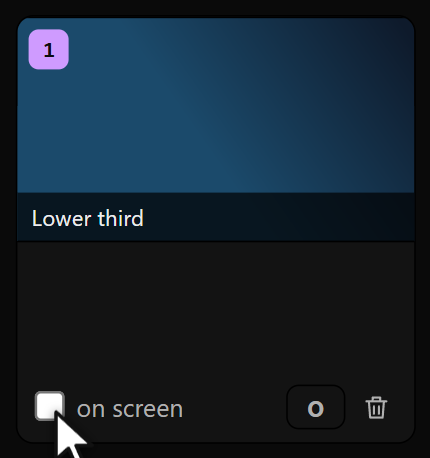
Click a card's on screen box — or press Ctrl+Shift+1 … Ctrl+Shift+9 for the first nine, and Ctrl+Shift+0 to clear the screen. Drag a card to reorder it; the number, and the shortcut, follow the position.
Replace, or ride over
By default a card replaces the script: the presenter sees the card and nothing else. Turn on overlay and the script keeps scrolling over the card — the way a lower third and a caption share one screen.
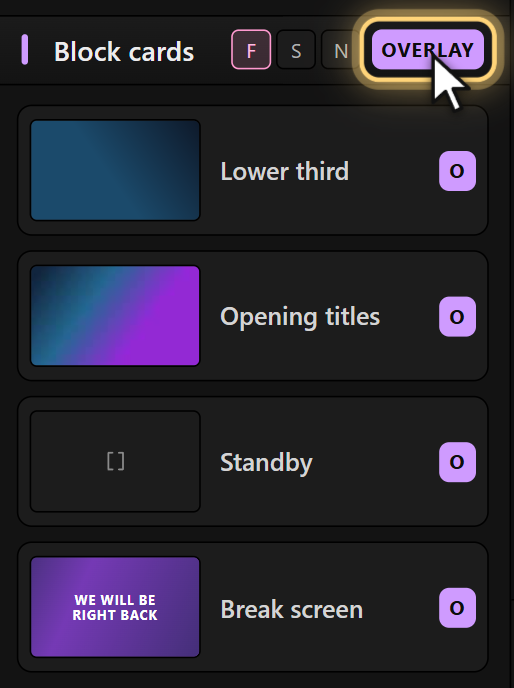
Two switches: the small O pill on each card, and the OVERLAY switch in the Assets column, which forces every card to overlay whatever its own pill says.
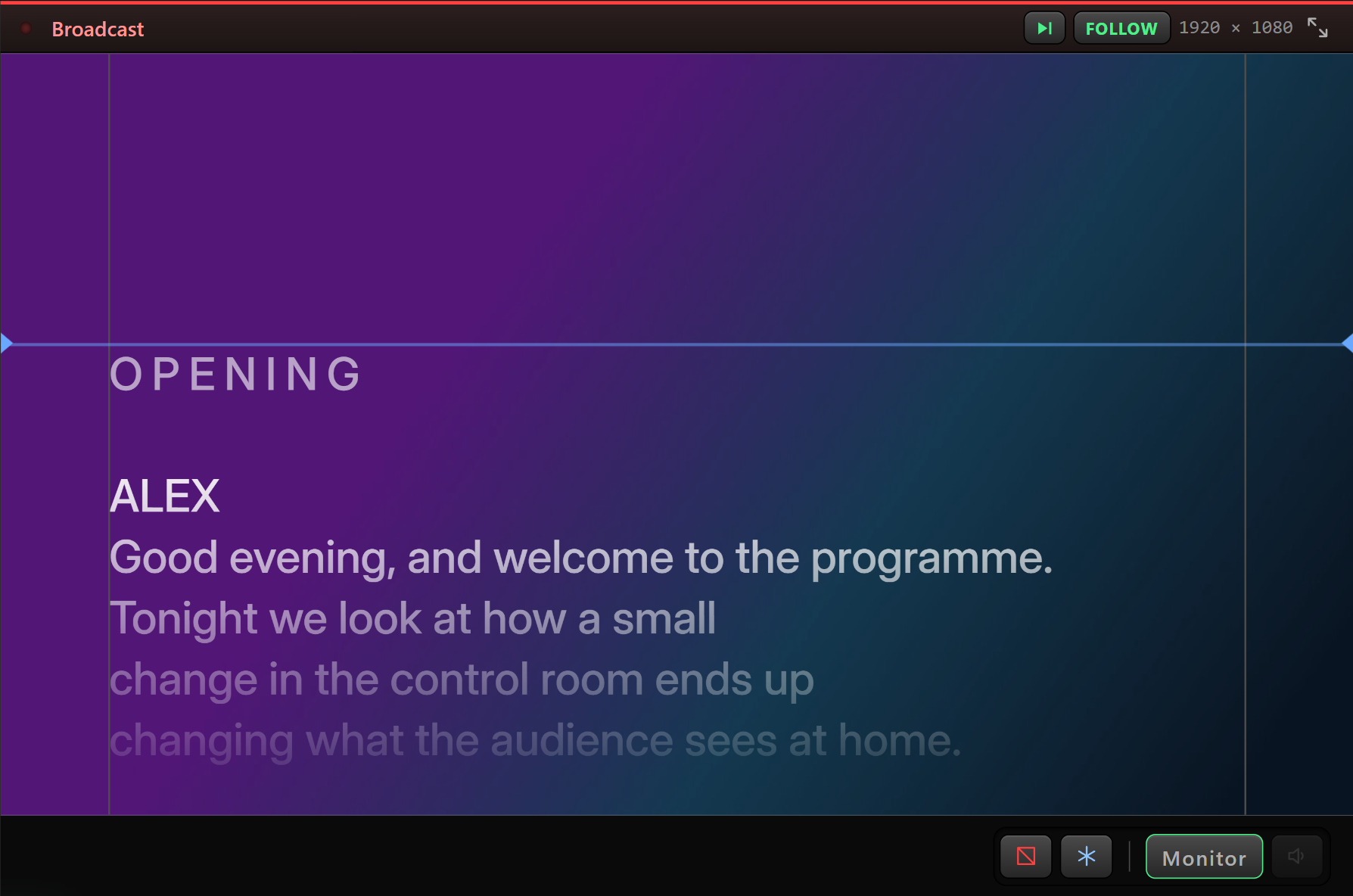
Beside the switch, the F S N selector sets how the text stays legible over the art: F a dark band behind the whole text (safe over anything, the default), S a shadow behind each letter, N nothing.
Video
Valendo plays the file as it arrived whenever the browser can — most phone .mov files play untouched. When it cannot (ProRes, matroska, avi), it converts the file first, which can take a moment. The playable copy belongs to the card and disappears with it; the original is never moved.
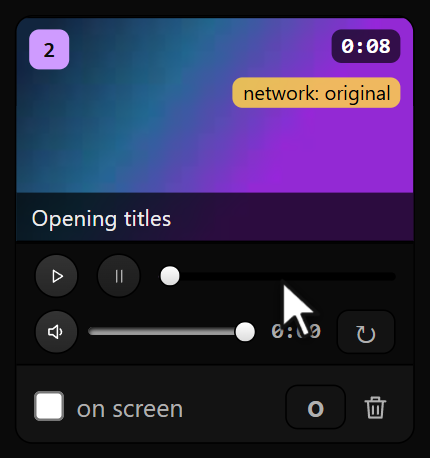
Each video card carries a player — play, pause, a scrub bar, volume, and loop. Scrubbing while the card is on air moves the presenter's screen with your hand. Pause puts the card on air stopped on a frame, for pre-positioning. Audio plays only in your preview, never on the presenter's screen.
When the file moves — a disconnected drive, a renamed folder — the card says Video not found and offers Relink. Images never do: they are copied into the app and travel inside the .valendo.
Message cards
Just text — BACK IN 2 MIN, WRAP, STRETCH. Big, centered, no file to manage. Same overlay rules as the others.
Screen cards
A card the app draws, rather than one that points at a file. + Add screen makes one; Edit the screen on the tile opens the editor.
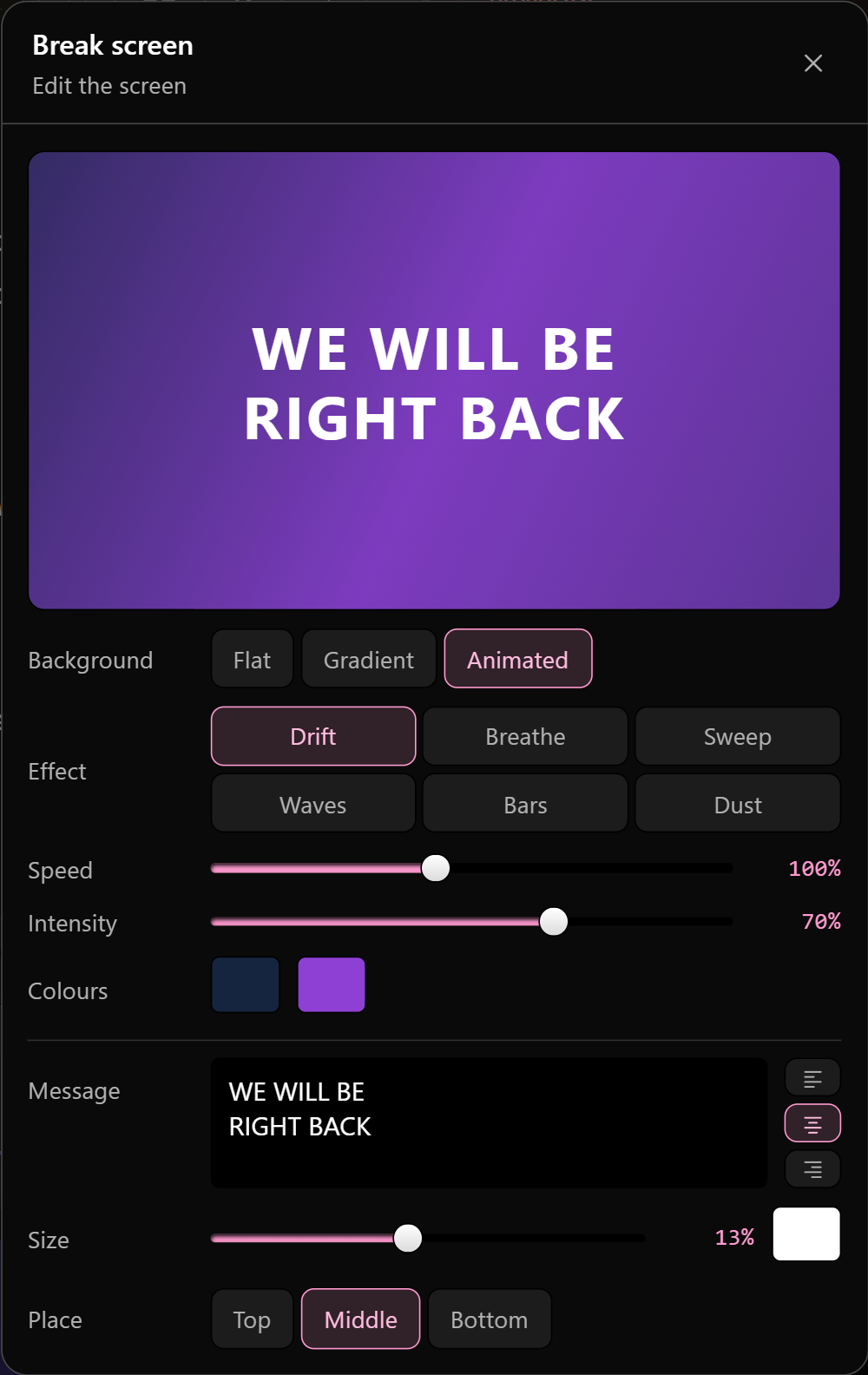
Because it is only a handful of numbers, it weighs nothing in the .valendo, has no link that can break, and needs no lighter copy for the network — and the same numbers draw it on the tile and at full resolution on the glass.
The background
Flat is one color. Gradient is two colors, an angle, and a fade. Animated is two colors moving, in one of six ways.
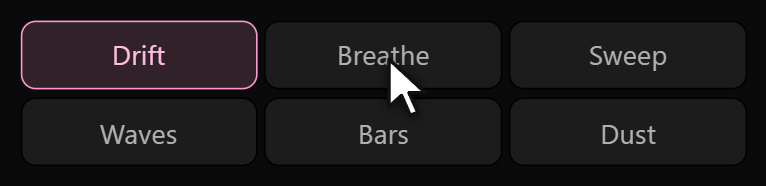
They are all slow — a restless background argues with whoever is reading. Speed and Intensity scale the movement.
The message
Optional — leave it empty and the card is just a backdrop. You set the text, the size (a share of the screen height, so the tile and the 55-inch monitor agree), the color, the alignment, and the place — top, middle or bottom, none of them touching the edge, which is what goes first behind glass.
What travels
Inside the .valendo | |
|---|---|
| Images | Yes, embedded |
| Messages | Yes |
| Screens | Yes — they are only numbers |
| Video | The path, not the file — a colleague opening the project needs the clip too |