Getting Started
Install
Windows
Run the -setup.exe from the download page. It installs per user, so it does not ask for an administrator password, and it puts a shortcut on the desktop and in the Start menu.
SmartScreen will warn about an unrecognized publisher, because the installer is not signed by a certificate authority. More info → Run anyway.
macOS (Apple Silicon)
Open the .dmg and drag Valendo to Applications. The download is signed with a Developer ID and notarized by Apple, so it opens with a double-click — no Terminal command, no warning.
Intel Macs aren't shipped as a download — see Building from Source.
From source
See Building from Source.
The first time you open it
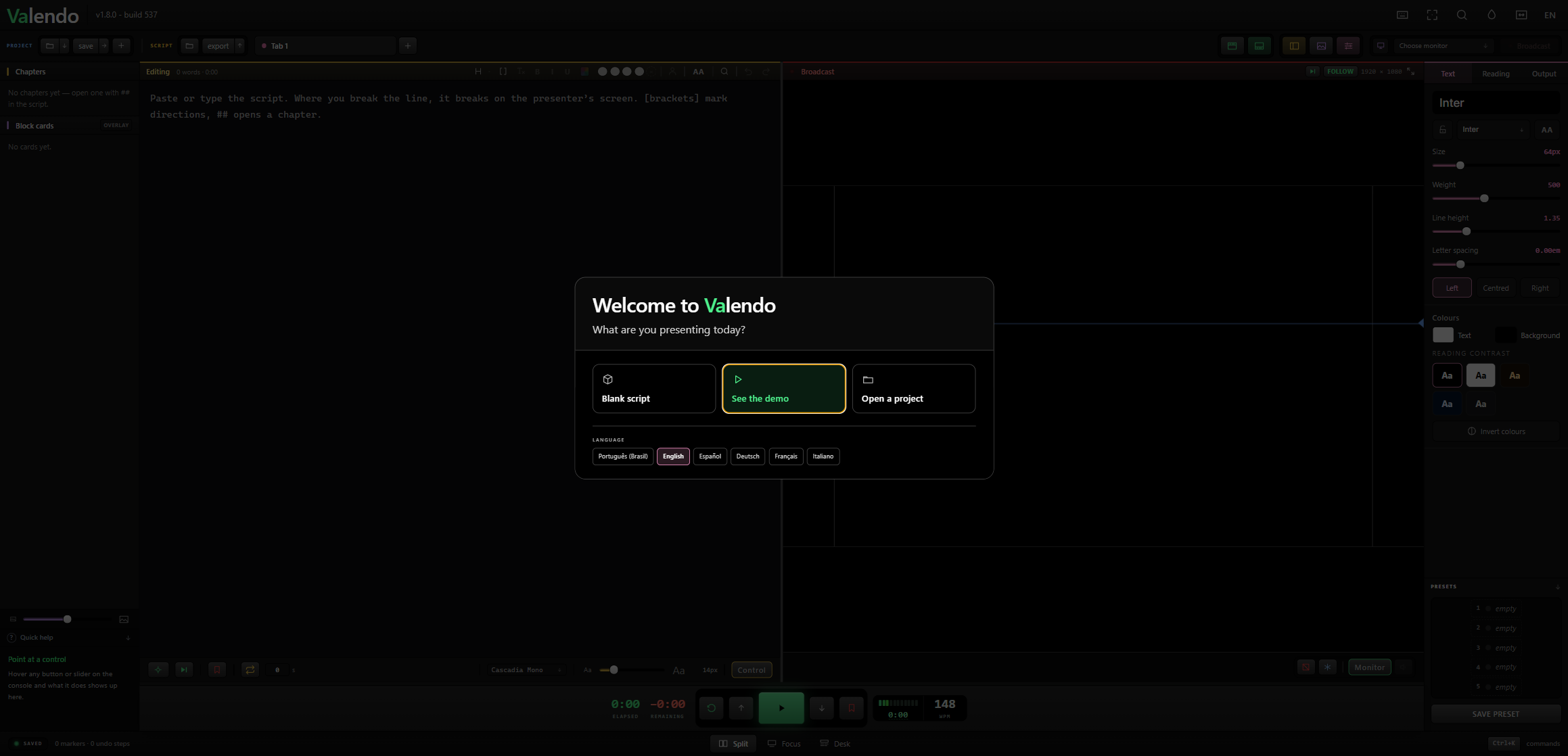
The green path is the one to press first — See the demo loads a short script so you can watch the app work before you write a word.
Four ways in:
| Choice | What happens |
|---|---|
| Pick up where I left off | Brings back the last session, exactly as you left it. Only appears when there is something to bring back. |
| Blank script | An empty editor. |
| See the demo | A short script that shows the app at work. You can delete it afterwards. |
| Open a project | Loads a .valendo file you saved before. |
Valendo already opens in the language of your operating system. To change it, use the row along the bottom — each language is written in its own name, and the sample script, the tab name and the color presets follow the choice immediately.

This screen appears on every launch, not only the first one. Valendo does not restore your last script by itself — opening it in someone else's studio, or with the screen already mirrored to a wall, would otherwise reveal the previous show without anyone asking. Recent projects appear as chips above the buttons — the project's name, without the .valendo on the end — and clear empties that list for good.
Escape and clicking outside pick the least destructive way in: continue when there is something to continue, the demo when there is not.
Writing a script
Paste it, type it, or import a txt, md, docx or pdf.
Two marks matter:
## Cold open

Good evening. Tonight we look at a change that is already happening.

[look at camera two - pause]

The important part is this: nobody has to stop the recording.##at the start of a line opens a chapter. Chapters appear in the left column with their duration, and as amber ticks on the progress line. Any Markdown heading level works,#through######, so a script pasted from elsewhere often arrives already marked.[square brackets]around a whole paragraph make it a stage direction: painted in blue, italic on the presenter's screen, and never counted as words to be spoken.
A blank line separates paragraphs. Nothing else is markup.
Getting it on a screen
- Pick a monitor in Choose monitor, at the top right. Identify flashes a number on each screen so you know which is which.
- Press Broadcast. The presenter's screen goes full screen on that monitor.
- Press Space, or the big green button.
The number beside the ruler is the pace in words per minute. The mouse wheel changes it anywhere in the app; the arrow keys nudge it.
While it is running
Everything is live. Fix a typo, raise the type size, change the margin, put a card on screen — the word under the reading line stays put. That is the whole point of the app, and it is explained in The Reading Anchor.
Saving
Ctrl+S saves the whole program — every tab, appearance, markers, cards — into a .valendo file. That file is what you carry to another machine.
Separately, Valendo autosaves your session so a power cut does not cost you the script. That autosave is what Pick up where I left off offers on the next launch.