Presenters
When more than one person reads from the same prompter, the script has to say who speaks each part — and the presenter has to tell at a glance, from two meters away, through a sheet of glass. Valendo does it with color.
Start: one white script
A plain script is all one color, apart from chapters in amber and stage directions in blue. Nothing yet says who reads what.
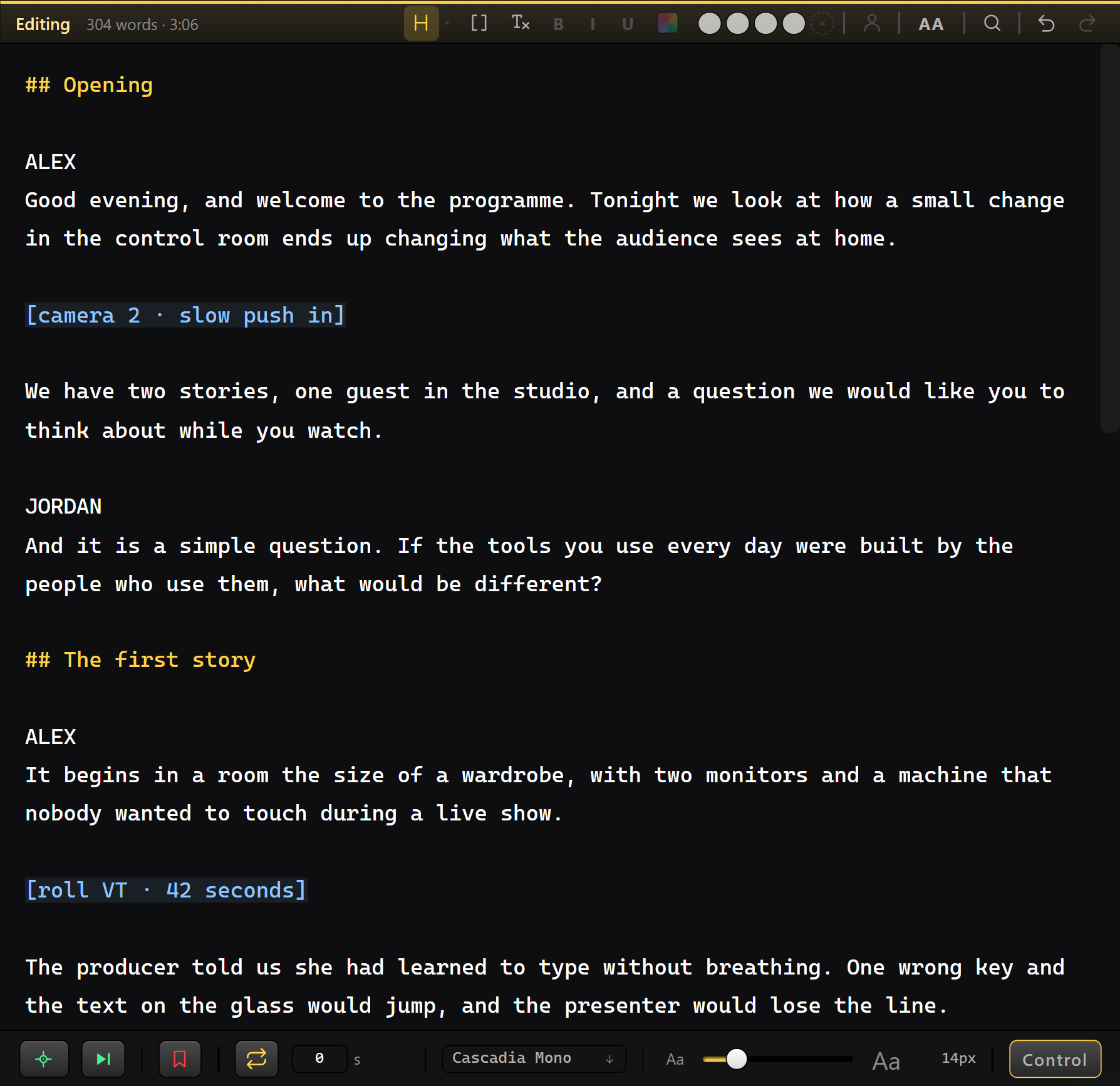
Make someone a presenter
Write each name on a line of its own, above what they say. Then select the name in the editor and press the person key in the Editing header.
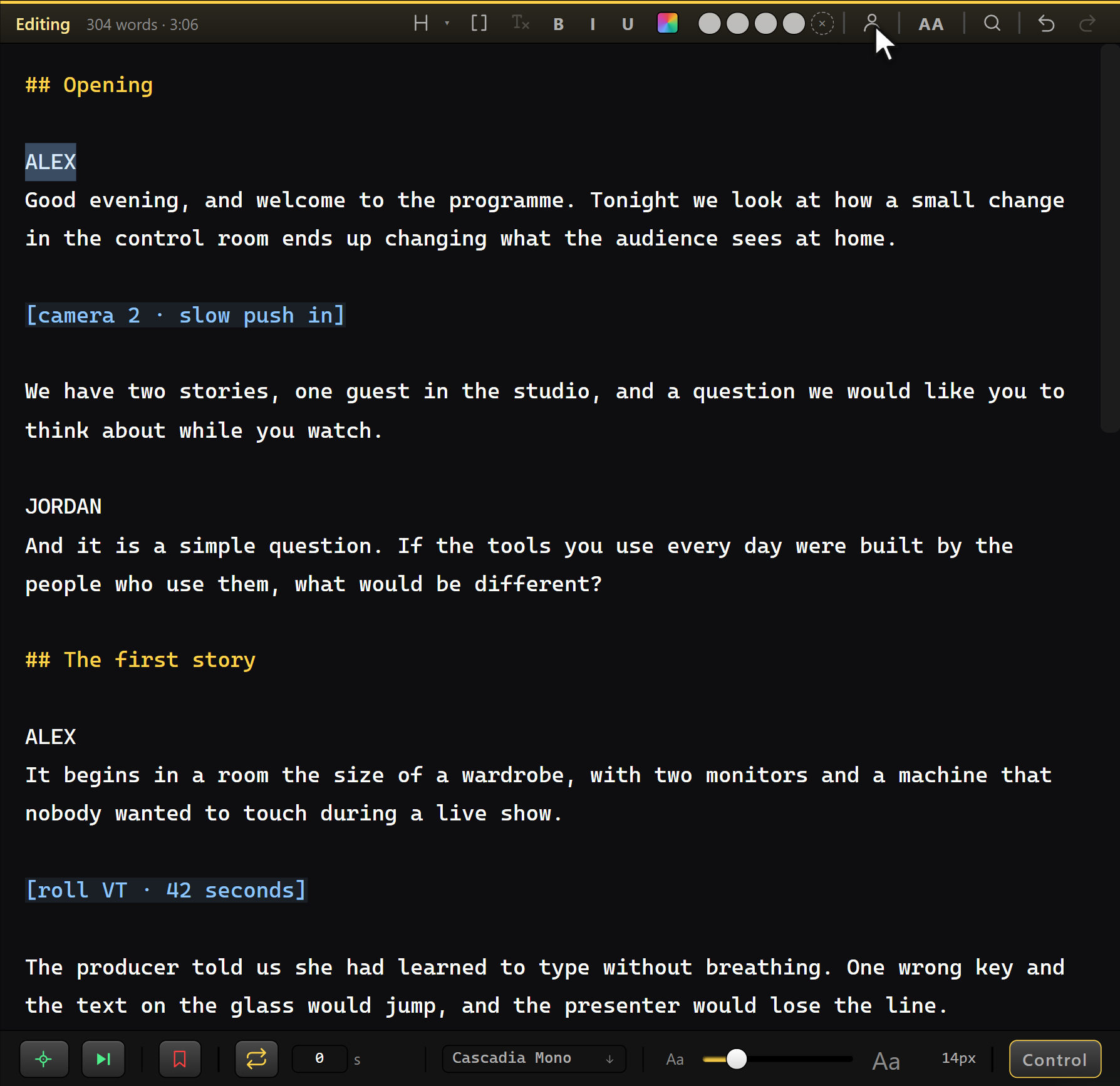
Do it once per person — the app finds every other line that starts with that name by itself. A chip appears under Settings › Text, and everything below the name is drawn in the chip's color, until the next presenter's name.
The color reaches the transmission
The color is not a note for the operator. It shows in the editor and on the presenter's screen at the same time — so the presenter knows, from the color alone, that the next paragraph is theirs.
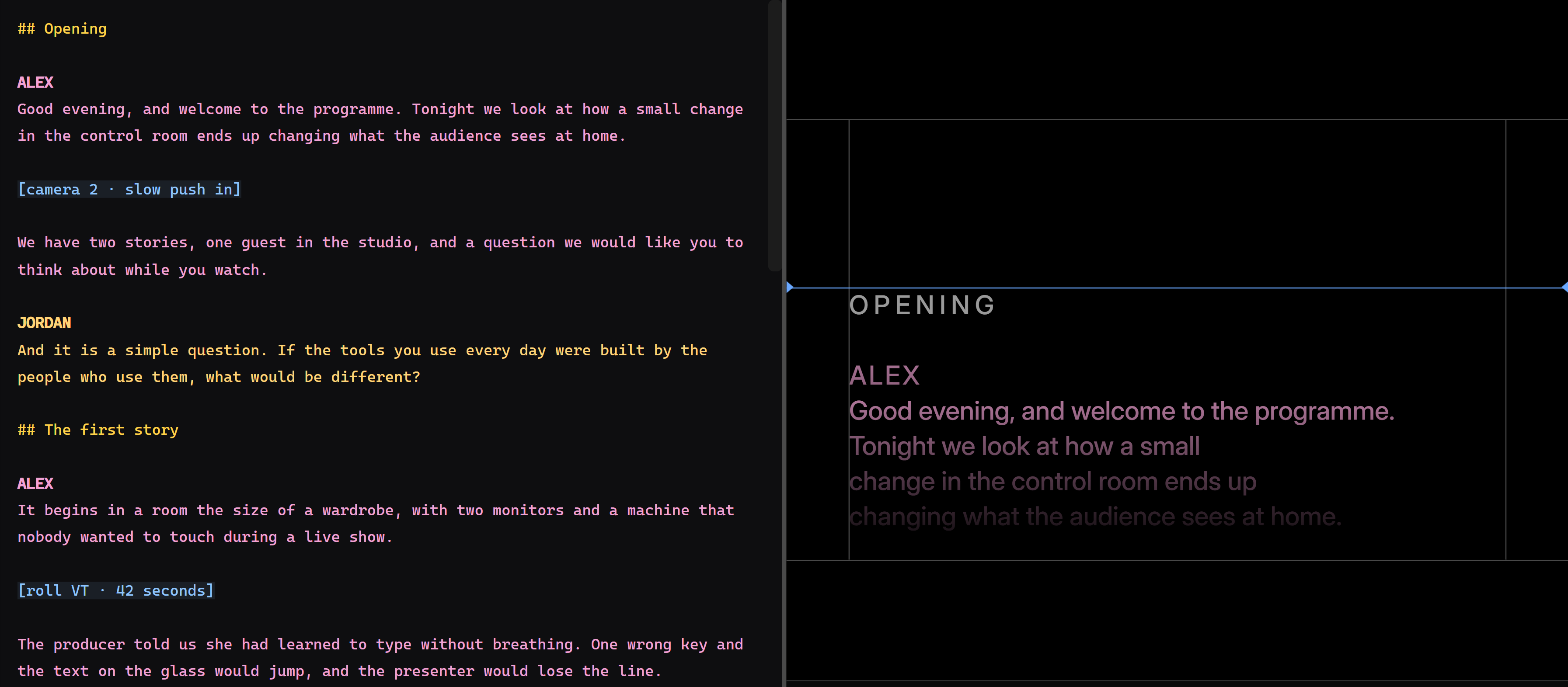
A chapter or a stage direction in the middle of someone's speech keeps its own color — amber and blue — and then the speech carries on in the presenter's color. A direction is an instruction to the person already reading, so it never hands the next paragraph to nobody.
Change a color, or a name
Click the swatch on a chip. Six colors are offered to start — each far enough from the others to survive a beamsplitter and studio lighting — and any color can be picked instead.
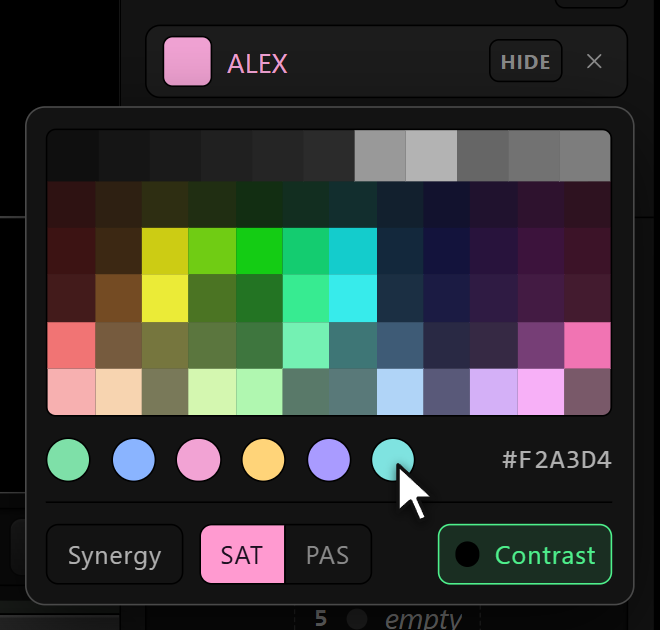
To rename, double-click the chip and type. The script is rewritten to match — so the chip and the script never end up saying two different things.
Hide the names on air
The names help the operator and whoever writes the script. On the presenter's screen they are one more thing to read out loud by accident. HIDE beside the Presenters title removes them all at once; HIDE on a single chip removes just that one.
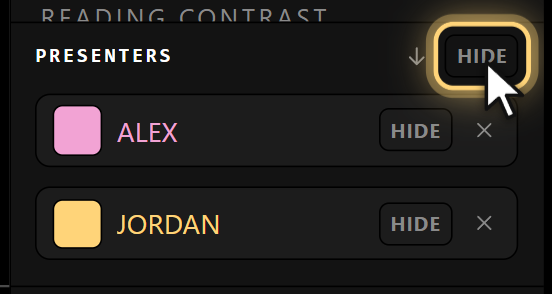
Hiding only touches the transmission. The names stay in the editor, so you never lose track of who speaks — they just leave the presenter's screen.
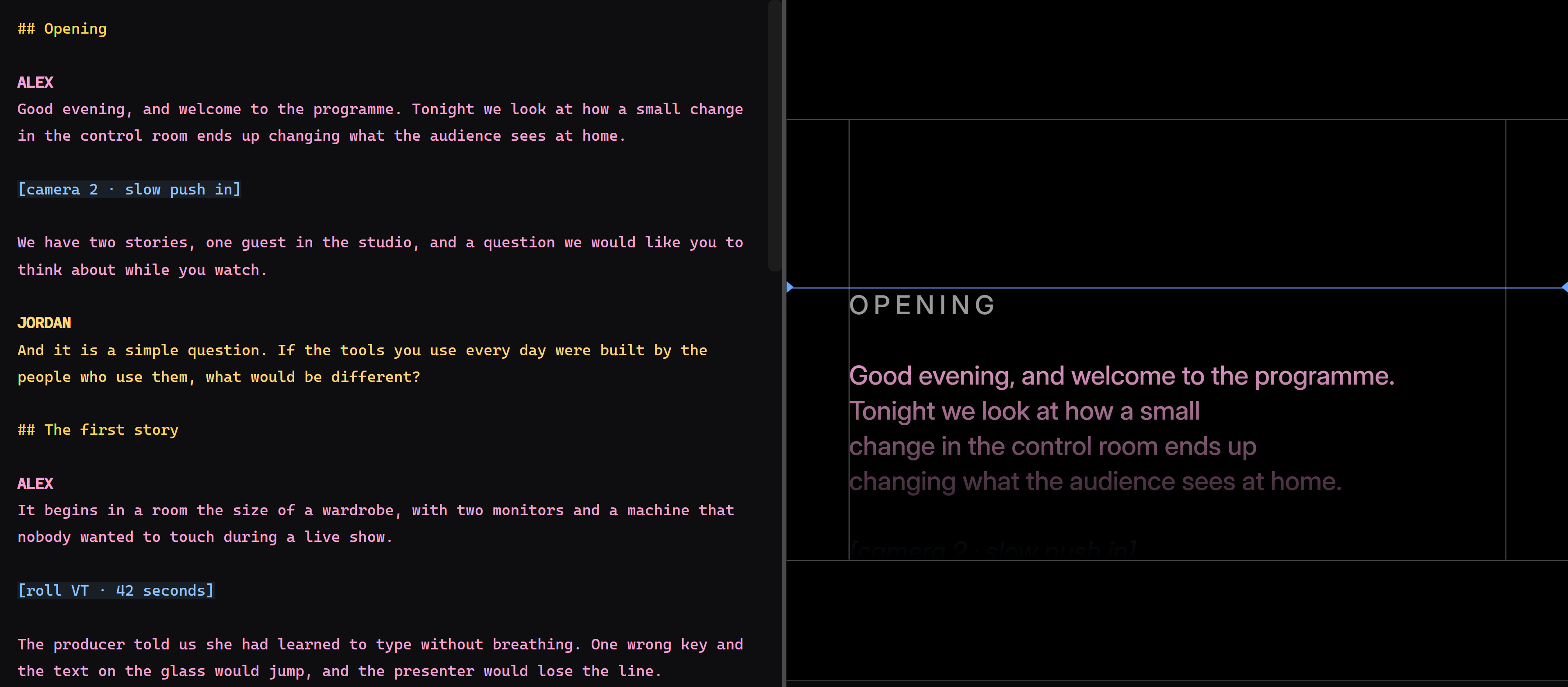
What is left on air is the color, which is what the name was there to establish. The hidden names also leave the pacing ruler, so there is no silent gap where a name used to be — the duration now matches what is actually going to be read.
Remove a presenter
The × on the chip. The name goes back to ordinary text: it stays in the script and stops being colored.
See also: The Operator Console · Output and Network