Marks and Search
Two marks are all the typed markup there is — ## for a chapter, [square brackets] for a stage direction. Everything else you want a presenter to notice is painted, not typed.
Painting a mark
Select a passage and make it bold, italic, underlined or colored — from the keys in the Editing header.
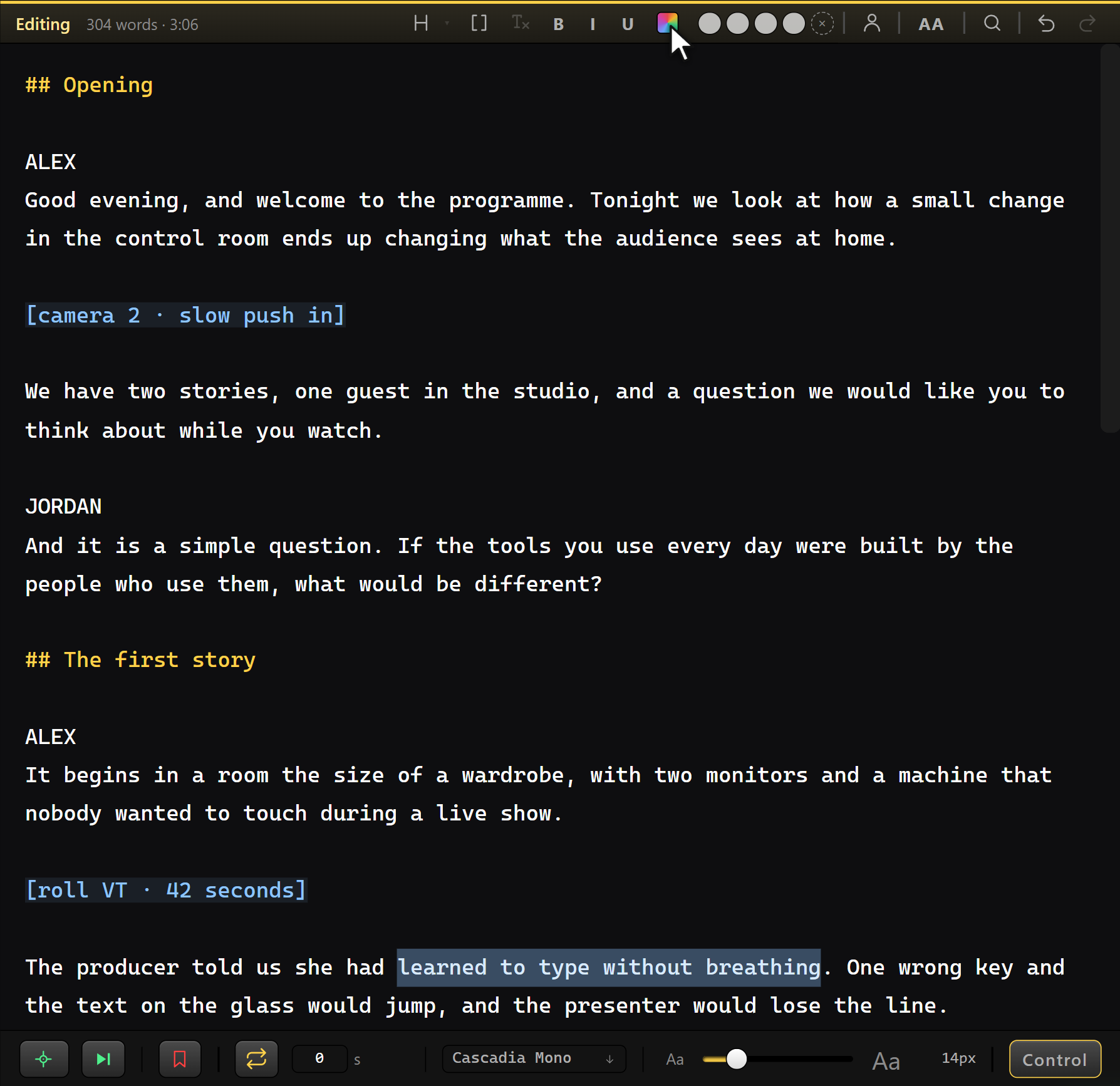
It reaches the presenter's screen looking exactly like that, on the network page too.

You paint marks live, and they never push the text under the reading line.
Choosing a color
Click the swatch. Six colors are offered to start with, each far enough from the others to survive a beamsplitter and studio lighting, and any color can be picked instead.
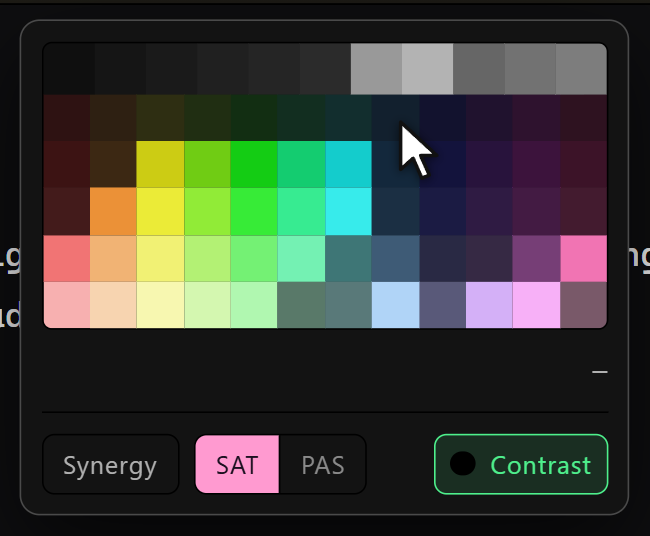
SAT | PAS switches the grid between saturated and pastel. The contrast filter hides any color that would not read against the output's own background — so what you pick is a color that will actually survive on the glass.
Synergy
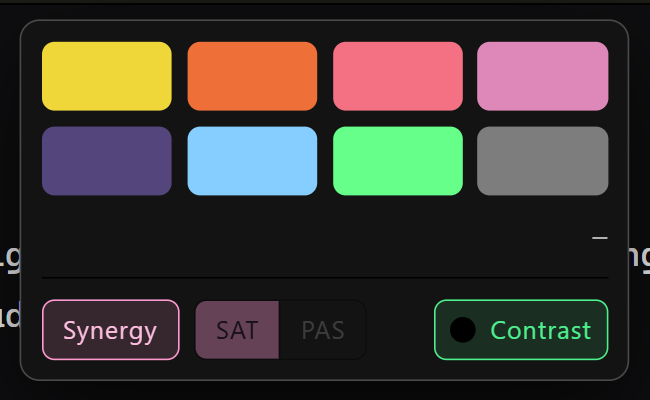
Eight colors chosen by a search that maximizes how far apart they stay from one another, so two presenters never end up in shades nobody can separate on glass.
Both the tone and the filter are remembered per machine, so sending a project to a colleague never changes the grid they see.
Find, replace, and paint
Ctrl+F opens the bar. It finds, replaces, and paints — often all in one pass.
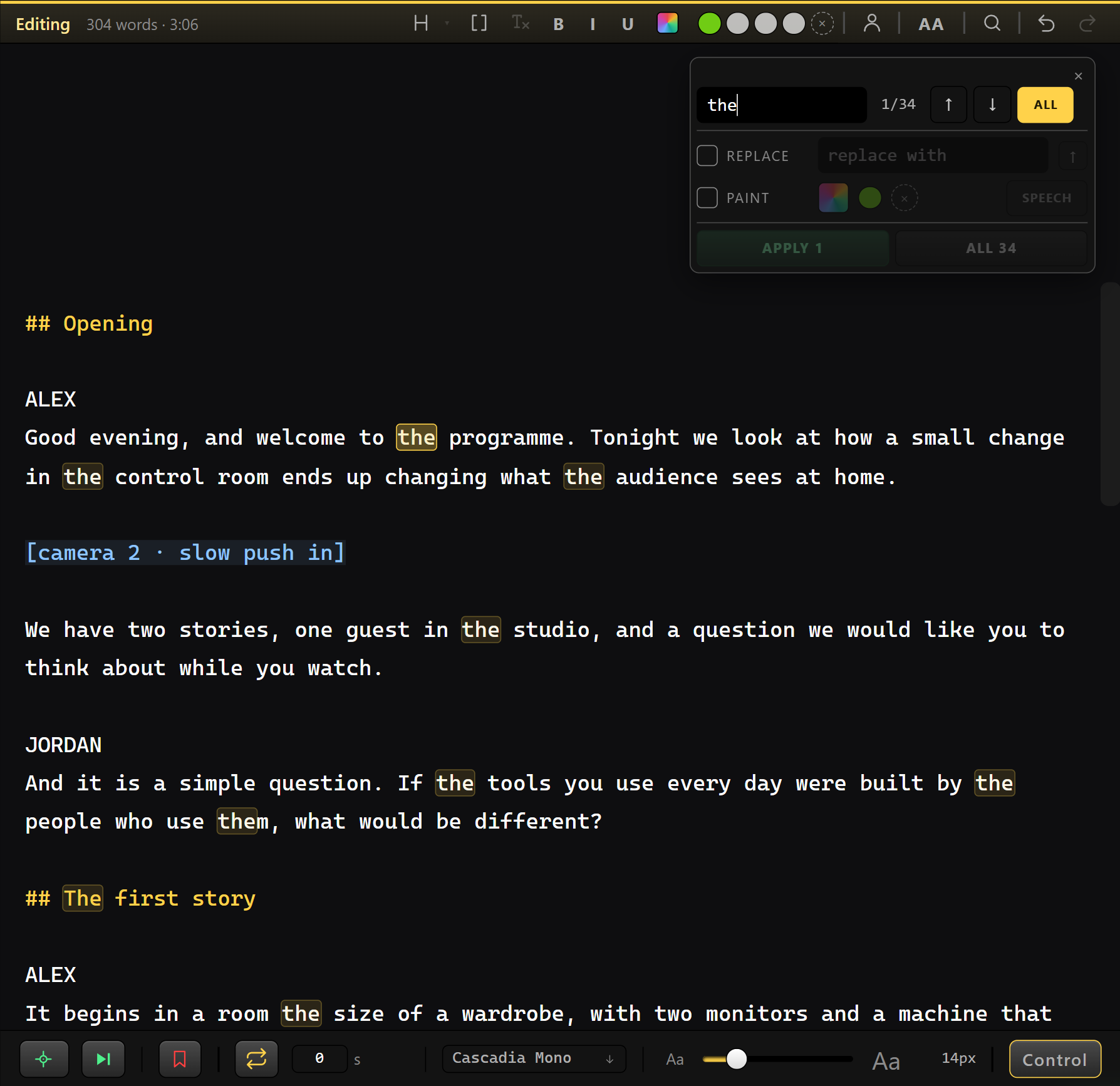
- ALL boxes every match in the script at once, so you see the spread before committing.
- Apply to all paints every occurrence in one gesture — the guest's name in one color and the sponsor's in another, across a forty-minute rundown.
- Overwrite decides whether a passage that already carries a mark is repainted or left alone.
- The Apply key stays dark until something is actually selected to apply.
- Replacing text and painting are the same pass: change the word and color it in one go.
The boxes are remapped on every edit — fix a comma in the first paragraph and every later box shifts with the text.
See also: Presenters · The Operator Console · Themes and Appearance